










Building a store23 October 20268 min read
Setting up Shopify subscriptions: requirements, payment methods, customer portal and common pitfalls
“Customers should receive our product regularly without ordering again every time.” That is a subscription, and Shopify offers a free app for it. But it does not work without preconditions: payment gateway, theme, checkout notices and shipping all play together. This article shows what the Shopify Help Center says about it, without assuming a technical background.
A note on scope
Everything here comes from the Shopify Help Center, as of October 2026. Menus and features change, so check your admin. I do not name prices for apps, fees or development. Which details on term, price, cancellation and withdrawal are legally required for a subscription is not a question for this article. Clarify that with your legal adviser. This is only about the technology.
What a subscription is in Shopify
The help lists subscriptions as one of three “purchase options”: subscriptions, pre-orders and try-before-you-buy. With a subscription, customers pay an agreed price for a product on a fixed schedule, such as daily, weekly or monthly. As possible benefits the help names predictable revenue, higher customer loyalty and chances for cross-selling and upselling.
Requirement: you need a subscription app. Without an app there is no subscription. The help names two ways:
- An app from the Shopify App Store that is integrated with the checkout, including the free Shopify Subscriptions app made by Shopify.
- A custom solution built on the subscription API. According to the help this requires experience working with APIs.
For billing the help distinguishes “pay-as-you-go” (customers pay on an ongoing basis, for example monthly) and “pre-paid” (one advance payment for a set number of months).
What the Shopify Subscriptions app can do
According to the help you can use it to:
- create auto-billed subscriptions that renew weekly, monthly or yearly
- modify, skip, pause and cancel plans and contracts
- apply discounts to subscription products (percentage, amount, buy X get Y or fixed price)
- show a subscription widget in the shop
- show subscription details on the product, cart and thank-you pages
- send email notifications to customers
- monitor active, paused and cancelled subscriptions
You create a subscription plan under Apps > Subscriptions > Plans > Create plan. According to the help you set the title and internal description, the products, an optional discount, the delivery frequency (week, month or year), a specific billing day and a maximum number of orders after which the subscription ends automatically. Plans can also be managed from a product’s page in the admin.
Requirements
This is where most stumbling blocks are. According to the help:
- Payment gateway: your shop has to use a supported gateway. Named are Shopify Payments, PayPal Express, Authorize.net, Adyen and Stripe. Availability depends on region and the gateway’s terms. Stripe is available only to select merchants, according to the help.
- Customer payment method: customers generally need a payment method that can be billed on a recurring basis. Local, manual or non-credit-card payment methods might not be available for subscriptions. Whether a specific method works in your shop, the help does not say. Background on payment methods in Germany is in Payment methods in Shopify for Germany.
- Theme: the theme has to be compatible with sections and blocks. The help names Online Store 2.0 themes built by Shopify, the Horizon themes, Debut from version 15.0 and Brooklyn from version 17.0. For other themes ask the theme’s developer.
- Sales channels: subscriptions are supported only on the Online Store, Shopify POS, the Shop channel and custom storefronts. Subscription-only products without a one-time purchase option can be sold only on the Online Store.
- Draft orders: subscriptions cannot be used with draft orders.
- Bundles: bundles are not compatible with the Shopify Subscriptions app. More in Creating Shopify bundles.
- Order edits API: it does not support subscriptions.
- Permissions: staff need a role with the apps and sales channels permission.
Subscription widget and product page
For customers to be able to choose the subscription, you add, according to the help, the Subscription widget block under Product information in the theme editor. With Online Store 2.0 themes the widget should be switched off under App embeds so it displays correctly. Per product you decide whether it is sold only as a subscription or also as a one-time purchase. How this fits cleanly into a product page’s buy box depends on the theme, see Customizing a Shopify theme.
Checkout, shipping and notices
First and recurring deliveries: at checkout customers choose the shipping method for the first delivery. For the following deliveries the help says the least expensive available method applies. Recurring shipments are billed and fulfilled separately. How shipping profiles are set up is in Setting up shipping in Shopify.
Billing: according to the help the customer is billed on the day after the subscription is due, at 10:00 am in your store’s local time.
Checkout notice: if the cart contains a subscription, the checkout shows a mandatory notice about the automatically renewing payment. According to the help it cannot be removed on any plan. The “subscription agreement” and “consent text” parts can be edited only by Shopify Plus merchants; the cancel text, the cancellation instructions and the cancellation policy (under Settings > Policies) can be edited by merchants on all plans. The help advises having custom wording reviewed by your legal team first. If you are touching the checkout anyway, read Customizing the Shopify checkout.
Cancellation policy: once a subscription is set up, Shopify adds a policy for cancellation. If it is empty, customers see a template. Customers have to agree to it at purchase. On policies in general: Store policies and legal texts in Shopify.
Discounts and gift cards: automatic discounts can be applied to subscription orders. Shopify Scripts that discount subscription costs or shipping apply only to the first payment, according to the help, and so do gift cards.
The customer portal
Customers manage their subscription in their customer account. According to the help they can change payment details, adjust the shipping address, pause, resume or cancel subscriptions, skip upcoming orders and view past orders. Sign-in uses the email address and a six-digit code, no password is needed. A cancellation cannot be undone, according to the help; anyone who only wants a break should pause.
So that customers can find the management, you add blocks in the checkout and accounts editor: a separate Subscription management page, action buttons on the Order and Order status pages and a link on the thank-you page.
In addition, Shopify Subscriptions emails customers three days before each recurring charge, according to the help, so they can skip, update payment details, pause or cancel. Subscriptions managed by a third-party app follow that app’s own notification schedule.
When cards expire
With Shopify Payments, saved card details are updated automatically through the card networks, according to the help, which reduces failed payments. The help adds that support is widespread in the United States and varies internationally. With other gateways customers may have to update their details themselves; whether you receive them automatically is something to clarify with the gateway. For taking over existing subscriptions the help lists separate pages on migrating payment methods and on importing and exporting subscription contracts; I have not evaluated their content here.
What the help does not answer here
The help pages say nothing about which products suit a subscription, how large a subscription discount should be or how many customers actually stay. They also say nothing about the legally required details for subscriptions in Germany, and they do not clarify whether your specific payment method works with recurring payments. On possible fees, the help only says that the app may involve additional fees depending on the setup. Check that with the app itself.
Examples from practice
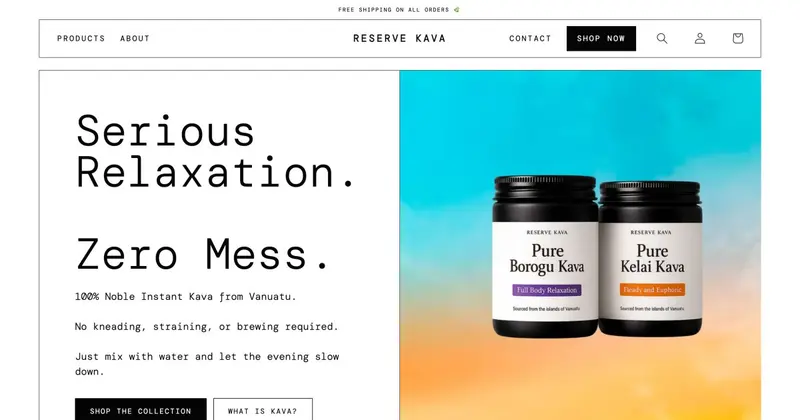
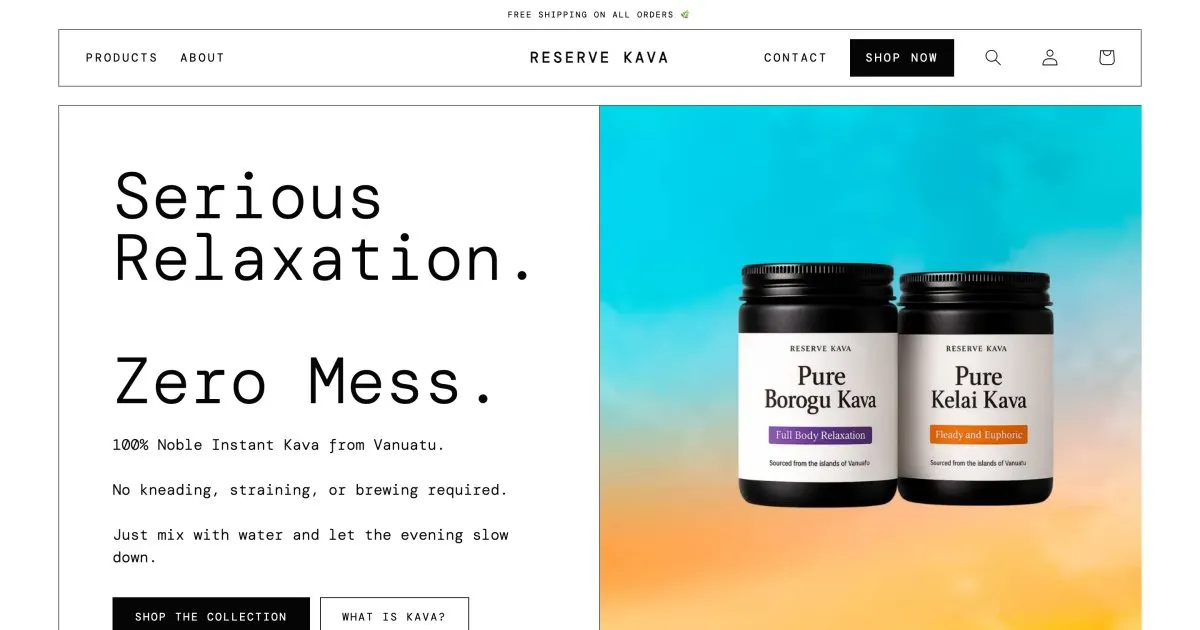
For Reserve Kava, an instant kava brand, I added single and multiple cans with a subscription while rebuilding the product pages, alongside a bundle that puts both cans into the cart. This shows why the limits above matter before the build: according to the help, Shopify bundles cannot be combined with subscriptions, so it has to be clear beforehand which purchase options should come together on the product page. Which solution suits your shop depends on plan, range and the purchase options you want.
Before you start: a checklist
- Which model fits: pay-as-you-go or pre-paid, and which products go into the subscription?
- Is the free Shopify Subscriptions enough, or do you need a third-party app or a custom solution?
- Does your shop use a supported payment gateway?
- Do the payment methods your customers should use work with recurring charges?
- Is your theme compatible, and is the subscription widget in the right place?
- Should bundles, draft orders or order edits work together with subscriptions? Then check the limits.
- Are the cancel text and policy maintained and legally reviewed?
- Checked with a real test order: checkout notice, confirmation email, customer portal, first follow-up delivery?
When a developer helps
A simple subscription plan you create yourself in the app. Help is worthwhile when the subscription should be built cleanly into the product page, for example with single, multiple and subscription choice, when theme and widget do not fit together, when an existing subscription system is to be migrated or when checkout and customer account have to be adapted. After that the setup belongs in the ongoing upkeep, see Shopify maintenance.
Frequently asked questions
Do I need an app for subscriptions? Yes. According to the help a subscription app has to be installed or a custom solution built on the API. There is the free Shopify Subscriptions app.
Can I combine subscriptions with bundles? Not according to the help: bundles are not compatible with the Shopify Subscriptions app.
Which payment gateways do I need? Named are Shopify Payments, PayPal Express, Authorize.net, Adyen and Stripe. Stripe only for select merchants.
Can customers cancel their subscription themselves? Yes, in their customer account. A cancellation cannot be undone, according to the help; pausing and resuming later is possible.
Can I remove the subscription notice in the checkout? No, not on any plan. Individual parts can be edited, some only with Shopify Plus.
What does the setup cost? That depends on the scope. I do not name amounts here.
What about your store?
Send me your store’s address for the free store check. I look at what is visible from the outside, such as load time, apps in the source code and how pages are built, and tell you what stands out. I only work with publicly visible data, without access to your account. What else I do for stores is under Services.
Further reading: Creating Shopify bundles · Shopify payment methods in Germany · Setting up pre-orders in Shopify · Setting up Shopify gift cards · Customizing Shopify email notifications · Setting up Shopify product variants · Shopify try before you buy
Kiril Karatitsyn, Shopify developer in Germany