




Building a store23 October 20269 min read
Setting up Shopify product variants: options, limits, prices, images and what to know first
“My T-shirt comes in three sizes and two colors, should I create six products?” No, that is what variants are for. Once a product has variants, though, price, stock and shipping move from the product page to the variant, and some limits only surprise you with larger ranges. This article shows what the Shopify Help Center says, for merchants without a technical background.
A note on scope
Everything here comes from the Shopify Help Center, as of October 2026. Menus and limits change, so check your admin. I do not name prices for apps or development. How many variants stay clear for your customers is a question about your range, not something the help answers. This article is only about the technology. Menu names are taken from the English interface.
Options, values, variants
The help explains it like this: a product has options (for example size and color), each option has values (S, M, L and blue, green), and each combination of values can be a variant. A small blue version of the T-shirt is one variant. Customers see the list of variants on the product page. You also manage the stock per variant on the Inventory page, more in Managing inventory in Shopify.
What matters, according to the help: for a product without variants you set price, stock and shipping on the product page. As soon as there are variants, you set them for each variant on its detail page.
The limits
- Up to 2,048 variants per product.
- Up to three options per product. Options can differ from product to product: one product with size, color and style, another with weight, finish and material.
- If you need more, the help mentions an app from the App Store, or adjusting the theme code so customer input is passed on as line item properties.
- From 500,000 variants in the store, a daily limit applies to uploads through an app or CSV: up to 10,000 new variants per day. Shopify Plus is exempt.
With the Combined Listings app, Shopify Plus merchants can bundle several separate products into one listing. Such a listing can have up to three options on top of the options of the products it contains.
When it goes past 100 variants
The help has its own notes for products with more than 100 variants:
- Up to 250 media (for example images) per product. Each variant can have one medium, and it must come from the product’s media list.
- If individual variants should appear as their own tile in collections and search results, instead of only the main product, the help names Combined Listings.
- Some third-party themes do not support more than 100 variants. For themes the help points to a guide for developers.
- Some theme app extensions, public apps and sales channels also do not support more than 100. Clarify that with the app developer.
- The apps Stocky and the old Order Printer do not support more than 100 variants. Custom apps using the REST Admin API have to move to the GraphQL Admin API.
Adding variants
The path in the admin: open Products, choose the product, and in the Variants area click + Add options like size or color. You enter the option name (shown to customers) and the values (also visible to customers). + Add another option adds one more, up to three. After Done and Save you set the prices.
Three ways to add more variants later:
- Add a value to an existing option: this creates all the new combinations at once. The help’s example: with three sizes and two colors, adding the color yellow creates three new variants in one go.
- Create a single variant by hand (Add variant): this creates only that one variant, not all combinations. An exact duplicate of an existing variant cannot be saved.
- Duplicate a variant (Duplicate): it takes over all details of the original, and at least one option value has to change. This works only in the admin on desktop or phone.
For each new variant you can set its own image, price, quantity, SKU, barcode, HS code, country of origin and locations, or take over the product’s defaults.
Options as category metafields
Options can be linked to category metafields. The data then becomes reusable: rename a color from Black to Graphite and the name changes everywhere the metafield is linked. For colors, the help says you can show the options as swatches on the product page. The product needs a category for that. When you link an existing option to a metafield, the existing values are deleted according to the help (a dialog warns you first). Metafields in general: Shopify metafields and metaobjects.
Editing variants
- One at a time: on the variant page you change options, price, stock and shipping.
- From the product page: variant image, price and available stock per location (filter by location first). If the list is grouped by an option, the top row is not a variant of its own. If you change price or image there, all variants in the group change.
- Several at once: in the bulk editor, which changes all details for multiple variants.
- A new option: the default value you enter is applied to all existing variants.
- Order: options and values can be reordered by drag and drop. That decides how customers see them.
If you delete an option value and it is the only one, the whole option has to be removed.
Hide variants instead of deleting
If you no longer want to sell a variant but want to keep it for history or later resale, the help recommends unpublishing it instead of deleting it. That works per sales channel and per catalog:
- A variant shows only if both product and variant are published in that channel or catalog.
- If the product is not published, all variants are hidden there, however the variant is set.
- If all variants of a product are unpublished, the whole product is hidden there until you publish at least one again.
- New variants are published by default, unless the product is not, or you change it before the first save.
- There is no publish date for individual variants.
- For catalogs with their own price adjustment, unpublished variants do not receive that adjustment. On catalogs and markets: Shopify Markets.
To stop selling a product with variants entirely, the help says you have to delete all options and values, including the default one. Otherwise the selection menu stays visible to customers.
Metafields for variants
On the variant page you can add your own fields with metafields. The help words this differently in two places: the overview page says variant metafields cannot currently be shown to customers. The how-to pages say that with a compatible theme you can add references to variant metafields in the theme editor. Check that in your theme before you build on it. How to maintain the whole range through a file: Importing products into Shopify with a CSV file.
What the help does not answer here
The pages I read say nothing on how many variants are still clear for your customers, how to name options or build SKUs, or whether sizes work better as a menu, buttons or swatches. How your theme shows the selection depends on the theme. The pages also say nothing about the effect of variants on search engines. And what the setup costs depends on the scope.
Examples from practice
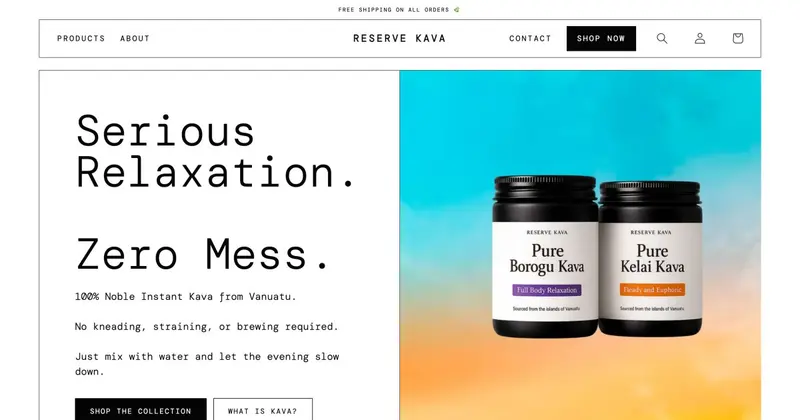
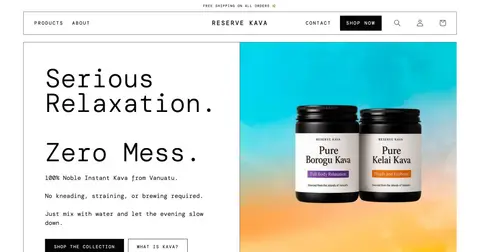
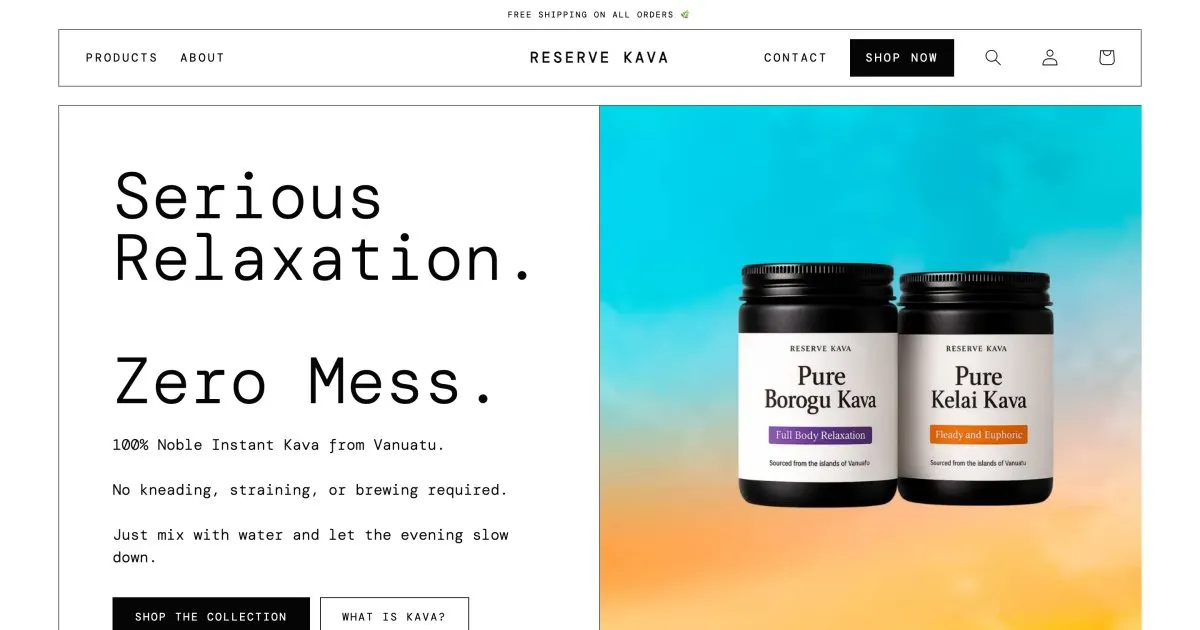
At Reserve Kava, a brand for instant kava, I added options for single and multiple jars with a subscription while rebuilding the product pages, plus a bundle that puts both jars in the cart. I built the selector for three and five jars on an unlisted test product. At Petaljet I made the variant list cleaner in a configurator for carnation boxes. Whether something like this suits your store depends on theme, range and need. More on the neighboring topics: Setting up Shopify subscriptions and Creating Shopify bundles.
Before you start: a checklist
- Which options does the product really need, and are three enough?
- How many combinations result, and are there more than 100?
- Does every variant have price, stock, shipping weight and SKU?
- Does every variant have its image, from the product’s media list?
- Should colors appear as swatches, and is a category set for that?
- Which variants should be visible in which channel or catalog?
- Does your theme cope with the number of variants and the display?
- Do the apps you use work with your number of variants?
When a developer helps
You set up the basics yourself. Help is worthwhile with more than three options or more than 100 variants, when the theme should show the selection differently (swatches, buttons, a custom configurator), when variants carry bundles or subscriptions, when variants are taken over from another system, or when apps and theme have to work together. Related: Customizing a Shopify theme and Managing inventory in Shopify. After that the setup belongs in the ongoing upkeep, see Shopify maintenance.
Frequently asked questions
How many variants can a product have? According to the help, up to 2,048, with up to three options.
Can I use more than three options? The help names an app from the App Store or changes in the theme code. With Shopify Plus there are also Combined Listings.
Should I delete or hide a variant? If you want to keep the data or sell it again later, the help recommends unpublishing.
Can every variant have its own image? Yes, one medium per variant, from the product’s media list. Up to 250 media per product are possible.
What happens if I add a value to an option? All the new combinations with the other options are created.
What does the setup cost? That depends on the scope. I do not name amounts here.
What about your store?
Send me your store’s address for the free store check. I look at what is visible from the outside, such as load time, apps in the source code and how pages are built, and tell you what stands out. I only work with publicly visible data, without access to your account. What else I do for stores is under Services.
Further reading: Managing inventory in Shopify · Shopify metafields and metaobjects · Creating Shopify bundles · Shopify try before you buy · Shopify collections and filters
Kiril Karatitsyn, Shopify developer in Germany