


Building a store24 October 20268 min read
Setting up Shopify collections and filters: conditions, sorting and Search & Discovery
“Customers can’t find anything in my store, even though it’s all there.” Often the products are not the problem. Two other things are: how the collections are built, and whether there are filters that fit the range. You can set up both in Shopify without code, but they come with rules worth knowing. This article covers what the Shopify Help Center says about them, for merchants without a technical background.
A note before we start
Everything here comes from the Shopify Help Center as of October 2026. Menus change, so check your own admin. Menu names are taken from the English interface. I don’t quote prices for plans, apps or development. How many collections your range needs and which filters help your customers depends on your range, not on the help pages.
What a collection is
A collection groups products together, for example by category, season, size, colour or “on sale”. In the store it becomes a page with a gallery of those products. According to the help pages, collections are available from the Basic plan; the Starter plan doesn’t support them.
One thing to check first: Shopify is replacing the old model of manual and automated (smart) collections with a new collections model. If the new model is already in your admin, all your existing collections were converted automatically. If it isn’t, you keep working with manual and automated collections. You can see which one you have under Products > Collections.
The old model: manual or automated
- Manual collection: contains exactly the products you pick and changes only when you add or remove products. You can only add whole products, not single variants.
- Automated (smart) collection: includes products that meet your conditions, up to 60 of them. You decide whether all conditions or just one must be met.
- An automated collection can’t be turned into a manual one. You create a new manual collection instead.
The new model: sources instead of a type
In the new model you no longer pick a type. Instead you add one or more sources to a collection:
- Products: products added automatically by condition or by hand.
- Variants: only certain variants instead of the whole product, for example only red items for a Valentine’s Day collection. The filters of that collection then show only the price range, swatches and options of those variants.
- Collection: the products of another collection, for example a “Tea accessories” collection built from the existing collections Teapots, Strainers and Filters.
- App: products from an app source.
If a product comes in through several sources, it shows up only once. You can also exclude products: one by one, by condition, or as a whole other collection. Exclusions always win over inclusions.
The help pages list limits per store: at most 5,000 collections with conditions, 50 collections that include another collection, 5 collections that exclude another collection, and 100 collections with variants.
Conditions: what matters
Conditions can refer to title, type, vendor, product category, tags, status, price, compare-at price, weight, inventory and metafields. A collection can have at most 60 conditions. A few rules from the help pages that often surprise people in practice:
- “is equal to” is exact, “contains” is partial. With “contains”, the value needs at least 3 characters.
- There is no “greater than or equal to” or “less than or equal to”. For a price range, you set two conditions with Match all conditions and set each boundary just below or just above the value you want.
- For products with variants, one variant is enough. If a Products source says “inventory greater than 0”, a product is included as soon as one variant has stock, even if others are sold out.
- Special characters in tags are ignored or treated as the same. A condition on the tag
red-newalso catchesred_newandred+new. - Archived products stay in collections but aren’t visible in the store.
- Products added by hand aren’t removed by any condition. You take them out by hand.
- Excluding with “is not equal to” across several vendors or types often doesn’t work as expected, according to the help pages. Tags with “is equal to” are more reliable.
- Compare-at price: an empty compare-at price is not the same as 0. To keep a product out of a sale collection that uses “compare-at price is set”, the help pages say to set its compare-at price to 0.
Collections based on metafields need a metafield definition with the collections setting turned on. What metafields are: Shopify metafields and metaobjects. On variants and options: Setting up Shopify product variants.
If a collection still contains the wrong products, the help pages suggest refreshing it: duplicate an existing condition, save, delete the duplicate and save again.
Collections nobody sees
Not every collection has to appear in the store. The help pages mention collections that are only used internally and aren’t published to any sales channel, for example for a tax override or as the target of a discount. More on that: Setting up taxes and VAT in Shopify and Shopify discount codes and automatic discounts.
Order, layout, menu
- Sorting: new collections are sorted by Most relevant. You can also choose best selling, title, price, date or Manually, where you drag products into place yourself. Note: sorting by price uses base prices, not the prices from Markets or B2B catalogs. More on that: Shopify Markets and Shopify B2B.
- Template: if you’ve created your own collection templates in the theme editor, you choose per collection which one applies.
- Publishing: you can set the sales channels and a publish date for the Online Store per collection. A collection’s visibility doesn’t change the visibility of the individual products.
- Menu: a published collection doesn’t show up in the menu automatically. You add it as a menu item under Content > Menus. If a collection is deleted, its links disappear from menus automatically.
Collections and Google
Every collection has its own search engine listing: page title, meta description and URL handle. According to the help pages, titles over 70 and descriptions over 320 characters may be cut off in search results. Don’t change the handle often. If you do, tick the box for a redirect from the old address, otherwise visitors land on a 404 page. More on redirects: Moving to Shopify and SEO: redirects. Why a store can still be missing from Google: Shopify store not found on Google.
Filters with Search & Discovery
You set up filters on collection pages and in search with the free Shopify Search & Discovery app, under Apps > Search & Discovery > Filters.
- Your theme has to support filters. Otherwise you can create filters, but customers won’t see them. You can check whether your theme supports them under Content > Menus, in the Collection and search filters section.
- Standard filters exist for availability, category, price, product type, tags and vendor. Custom filters are based on product options, metafields or metaobjects. Up to 25 filters are possible in total.
- Grouping values: several values can be combined into one, for example Onyx, Ebony and Midnight into Black.
- Swatches: filters with colour swatches or images work through metafields that reference metaobjects, and the theme has to support them.
- Empty values can be hidden or moved to the end of the list.
- Logic: values from different filters are combined with “and”, values within the same filter with “or” by default. For tags and list metafields you can choose “and”.
Limits of filters
- Collections with more than 5,000 products don’t show filters. The help pages suggest splitting large collections, for example “Women’s clothing” into tops, jeans and boots.
- A filter shows at most 100 values in the store.
- In search, filters and counts are based on the first 1,000 results.
- The price filter appears only in the store’s default currency.
- The tag filter appears only in the default language, and vendor values always stay in the default language.
- New metafield values may only appear after re-indexing, which takes 24 to 48 hours according to the help pages.
- The same options must have the same name everywhere, so not “Color” in one place and “Color:” in another.
What the help pages don’t answer
The pages I read don’t say how many collections a range needs, how deep navigation should go or which filters really help your customers. They also say nothing about the effect on sales or rankings. If you use a search solution other than Search & Discovery, that provider’s rules apply. And what the setup costs depends on its scope.
Examples from practice
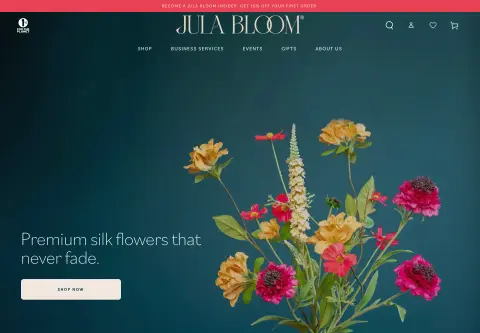
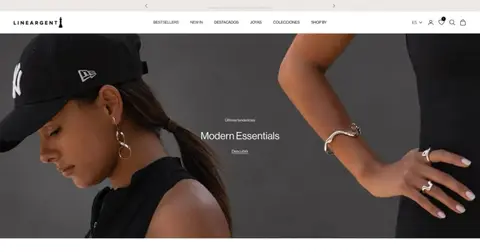
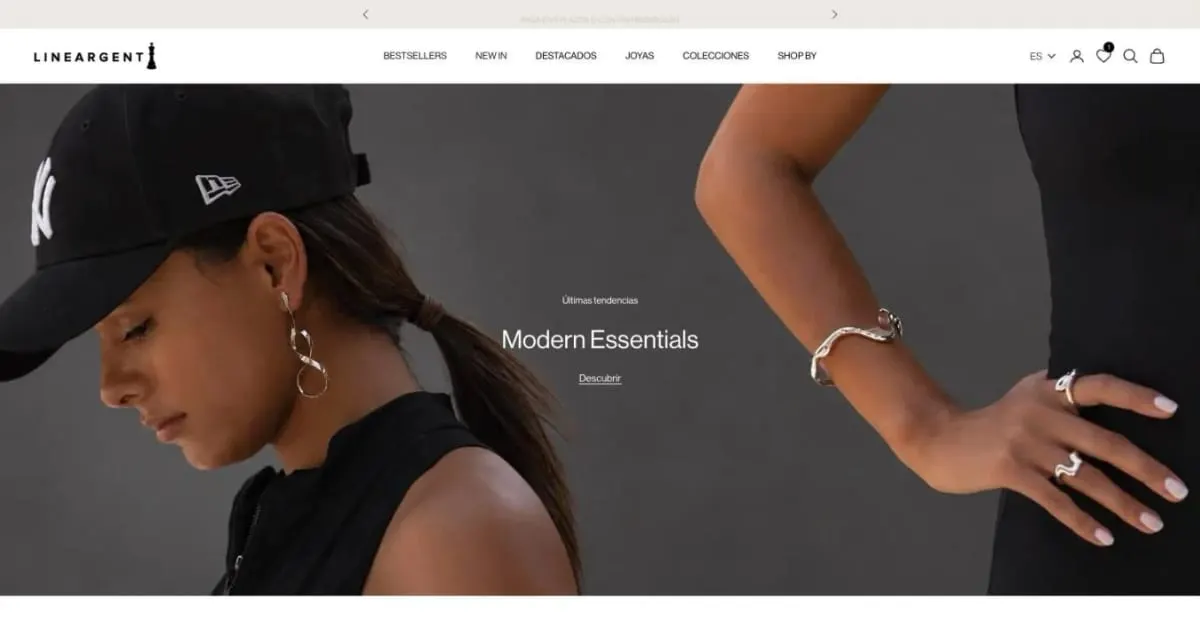
For Lineargent I built breadcrumbs for collection pages that show where a collection sits in the catalogue. Search and merchandising there run through Searchspring, not Search & Discovery. For Minbie every collection got its own template, plus a sippy cups collection with a colour switcher. For Jula Bloom one of the things I did was give the filter bar on collection pages a calmer design. Setting up Search & Discovery filters for a client isn’t described in my published projects, and I won’t make anything up about it.
Before you start: a checklist
- Do you already have the new collections model, or still manual and automated collections?
- Which collections belong in the menu, and which are internal only (taxes, discounts)?
- Are tags, types and vendors written consistently so conditions work?
- Are there collections with more than 5,000 products that should be split?
- Which sorting fits each collection?
- Do all important collections have a page title and description for Google?
- Does your theme support filters, and which filters really help your customers?
- Should filters work in several languages or currencies? Then check the limits above.
When a developer helps
You can set up collections and standard filters yourself. Help is worth it when the theme doesn’t support filters or swatches, when collection pages need their own templates, breadcrumbs or navigation, when metafields for filters first have to be set up and filled in properly, or when a large catalogue needs a new structure. That’s often part of a Shopify redesign. Related: Shopify theme customization.
Frequently asked questions
Can I turn an automated collection into a manual one? Not in the old model. You create a new manual one.
Why is a sold-out product still in my “in stock” collection? For products with variants, the help pages say it’s enough for one variant to meet the condition.
Why can’t I see any filters in my store? Common reasons according to the help pages: the theme doesn’t support filters, the collection has more than 5,000 products, or new values haven’t been indexed yet.
Do I need an app for filters? Yes, the free Shopify Search & Discovery app.
Does a new collection appear in the menu automatically? No, you add it under Content > Menus.
What does the setup cost? That depends on the scope. I don’t quote amounts here.
What about your store?
Send me your store’s address for the free store check. I look at what is visible from the outside, such as load time, apps in the source code and how pages are built, and tell you what stands out. I only work with publicly visible data, without access to your account. What I do in a redesign is under Shopify redesign.
Further reading: Shopify metafields and metaobjects · Setting up Shopify product variants · Shopify store not found on Google
Kiril Karatitsyn, Shopify developer in Germany